> ## Documentation Index
> Fetch the complete documentation index at: https://lightdash-06-24-docs-simplify-date-zoom-usage-description.mintlify.site/llms.txt
> Use this file to discover all available pages before exploring further.
# Lightdash CLI reference
> The Lightdash CLI is the recommended way to develop your Lightdash project. It makes development faster and easier, as well as giving you options for building more powerful automation to manage your Lightdash projects.
For installation instructions, see [How to install the Lightdash CLI](/guides/cli/how-to-install-the-lightdash-cli).
## Dependencies
The Lightdash CLI requires Node, NPM, and the [dbt core](https://docs.getdbt.com/docs/core/installation-overview) or [dbt cloud](https://docs.getdbt.com/docs/cloud/cloud-cli-installation) CLI to be installed and available under the `dbt` command.
### Known limitations when using dbt cloud CLI
**Warehouse credentials dependency for some commands**
Affected commands: `lightdash generate`, `lightdash preview` and `lightdash start-preview`
These commands rely on the warehouse credentials from the active project, as the dbt Cloud CLI does not expose credentials directly. Ensure the project's credentials have access to all development and staging schemas for a seamless experience.
**Empty warehouse credentials for new projects**
Affected commands: `lightdash deploy --create`
When using this command to create a new project that is not a preview, the warehouse credentials will not be populated automatically. Users must update the warehouse credentials manually in the project settings page after the project is created.
## Global options
There are three global options that can be used with any Lightdash CLI command: [version](#version), [help](#help), and [verbose](#verbose).
### Version
`--version` or `-V`
Ignores the preceding command and shows the installed CLI version. Usually it's used right after `lightdash`, like this:
```bash theme={null}
lightdash --version
```
If you need to upgrade your version of the Lightdash CLI, run one of the following in your terminal depending on how you installed it:
```bash theme={null}
npm install -g @lightdash/cli
lightdash --version
```
```bash theme={null}
brew update && brew upgrade lightdash
lightdash --version
```
### Help
`--help` or `-h`
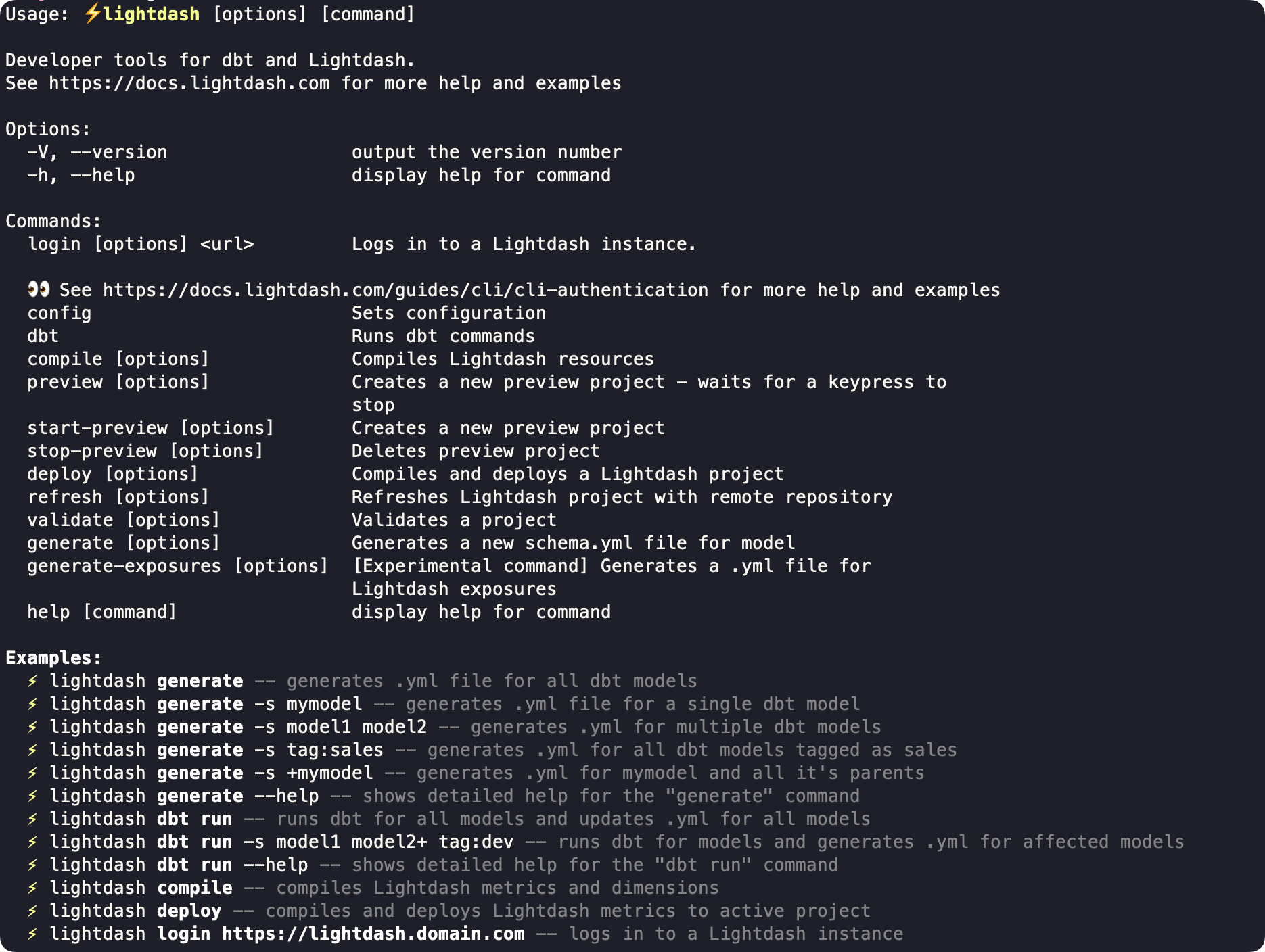
Tells you what the preceding command does and lists all command-specific options. You can view the Lightdash CLI help like this:
```console theme={null}
lightdash --help
```
That returns the Lightdash CLI help menu:
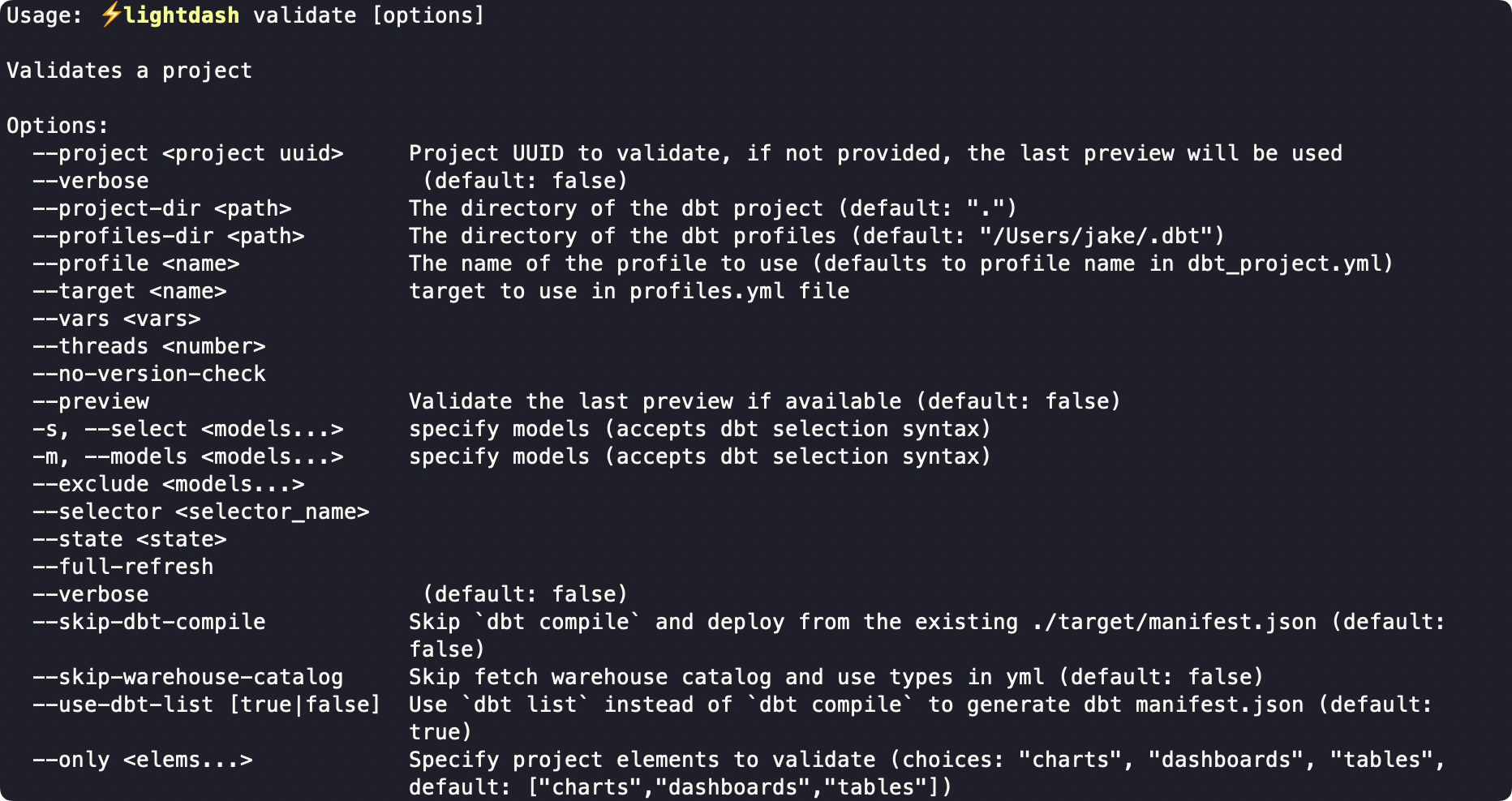
 When you use the `--help` or `-h` option with a speific command:
```console theme={null}
lightdash validate -h
```
That returns details and examples for the command itself:
When you use the `--help` or `-h` option with a speific command:
```console theme={null}
lightdash validate -h
```
That returns details and examples for the command itself:
 ### Verbose
`--verbose`
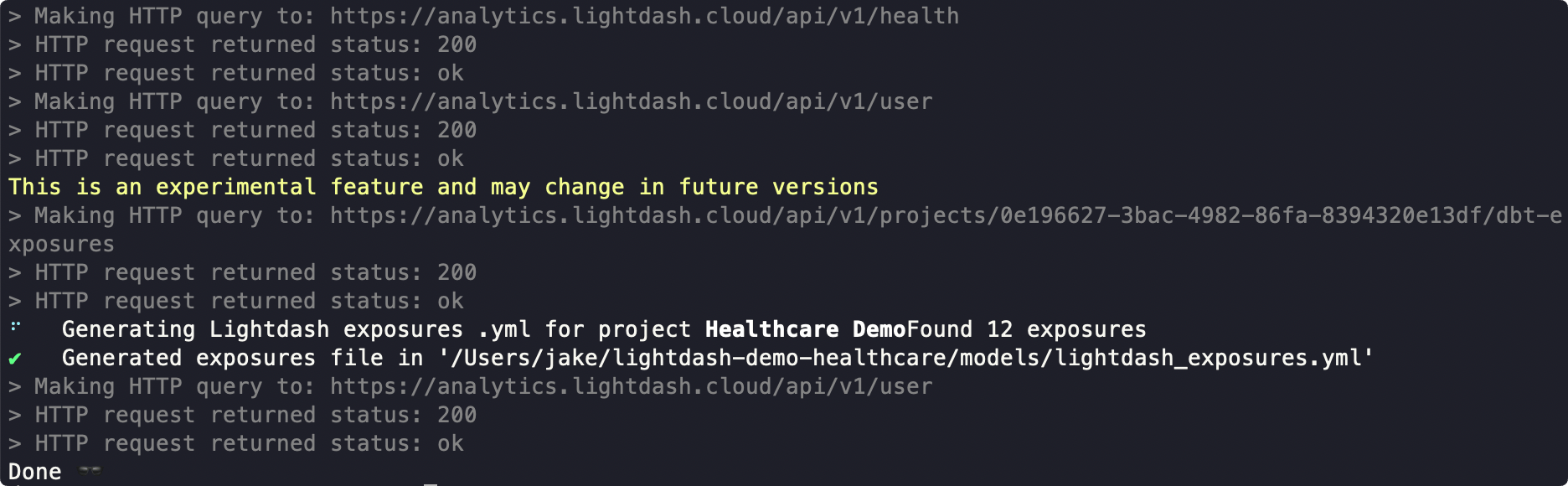
Defaults to OFF. When included, each step will print logs as it progresses through the command. For example, here's a `--verbose` version of `lightdash generate-exposures`:
### Verbose
`--verbose`
Defaults to OFF. When included, each step will print logs as it progresses through the command. For example, here's a `--verbose` version of `lightdash generate-exposures`:
 ## Commands
The table below includes a complete list of all commands available in the Lightdash CLI.
For examples and command-specific options, click through the command in the table for docs, or install the Lightdash CLI and use the [global help option](#help).
| Command | Description |
| -------------------------------------------------------------------------------------------- | ------------------------------------------------------------------------------- |
| [`lightdash login`](/references/lightdash-cli#lightdash-login) | Log in to a Lightdash instance using email/password or a token |
| [`lightdash config set-project`](/references/lightdash-cli#lightdash-config-set-project) | Choose or set the Lightdash project you are working on |
| [`lightdash config get-project`](/references/lightdash-cli#lightdash-config-get-project) | Get the current active project |
| [`lightdash config list-projects`](/references/lightdash-cli#lightdash-config-list-projects) | List all non-preview projects in your organization |
| [`lightdash compile`](/references/lightdash-cli#lightdash-compile) | Compile lightdash resources using your local project files |
| [`lightdash preview`](/references/lightdash-cli#lightdash-preview) | Create a temporary preview project, then wait for a keypress to stop |
| [`lightdash start-preview`](/references/lightdash-cli#lightdash-start-preview) | Create a preview project that stays open until it is stopped |
| [`lightdash stop-preview`](/references/lightdash-cli#lightdash-stop-preview) | Shut down an open preview project |
| [`lightdash deploy`](/references/lightdash-cli#lightdash-deploy) | Compile and deploy a Lightdash project using your local project and credentials |
| [`lightdash refresh`](/references/lightdash-cli#lightdash-refresh) | Refresh Lightdash project with remote repository |
| [`lightdash validate`](/references/lightdash-cli#lightdash-validate) | Validate content from your active project against your local project files |
| [`lightdash generate`](/references/lightdash-cli#lightdash-generate) | Generate or update `schema.yml` file(s) for the selected model(s) |
| [`lightdash dbt run`](/references/lightdash-cli#lightdash-dbt-run) | Run dbt, then generate or update `schema.yml` file(s) for the selected model(s) |
| [`lightdash generate-exposures`](/references/lightdash-cli#lightdash-generate-exposures) | \[Experimental command] Generates a YAML file for Lightdash exposures |
| [`lightdash download`](/references/lightdash-cli#lightdash-download) | Download all charts and dashboards from your Lightdash project as code |
| [`lightdash upload`](/references/lightdash-cli#lightdash-upload) | Upload charts and dashboards as code to your Lightdash project |
| [`lightdash rename`](/references/lightdash-cli#lightdash-rename) | Rename model or field names across all your Lightdash content |
| [`lightdash diagnostics`](/references/lightdash-cli#lightdash-diagnostics) | Show diagnostic information about the CLI environment |
| [`lightdash sql`](/references/lightdash-cli#lightdash-sql) | Run raw SQL query against the warehouse using project credentials |
| [`lightdash lint`](/references/lightdash-cli#lightdash-lint) | Validate Lightdash Code files against JSON schemas |
| [`lightdash pre-aggregate-audit`](/references/lightdash-cli#lightdash-pre-aggregate-audit) | Audit pre-aggregate hit/miss coverage for one or every dashboard |
***
### `lightdash login`
Log in to a Lightdash instance using email and password or a token.
```console theme={null}
lightdash login [URL]
```
**Argument:**
* `[URL]`
* The URL for your Lightdash instance (see examples below)
**Options:**
* `--token `
* For logging in with an access token (common for SSO users)
* Exclude this to log in with email and password
* `--project `
* Select a project by UUID after login (must be valid UUID)
**Examples:**
Log in to Lightdash Cloud US instance (for most Starter customers):
```bash theme={null}
lightdash login https://app.lightdash.cloud
```
Log in to Lightdash Cloud EU instance while showing detailed logs of login process:
```bash theme={null}
lightdash login https://eu1.lightdash.cloud --verbose
```
Log in to a custom domain with a personal access token (exclude `--token` to log in with email and password):
```bash theme={null}
lightdash login https://custom.lightdash.domain --token bv6105f53cb127087189cfib180a3131
```
### `lightdash config set-project`
Choose the project you're developing in so the CLI knows which project content to look at for other commands like `lightdash validate` and `lightdash preview`. If your organization only has one project you won't need to use this!
```bash theme={null}
lightdash config set-project
```
This command will bring up an interactive list of projects in your organization to choose from.
If you need to set the project non-interactively, you can use one of the two optional arguments below.
**Options:**
* `--name`
* Set the project non-interactively by passing an explicit project name
* `--uuid`
* Set the project non-interactively by passing an explicit project UUID
**Examples:**
Set project to "Healthcare Demo":
```bash theme={null}
lightdash config set-project --name "Healthcare Demo"
```
Set project to the one with this UUID:
```bash theme={null}
lightdash config set-project --uuid "d75379bc-f6e9-4e52-86b2-d897cabacd0c"
```
### `lightdash config get-project`
Get the current active project that the CLI is configured to use.
```bash theme={null}
lightdash config get-project
```
This command displays the project that is currently set for CLI operations. Use this to verify which project will be affected by commands like `lightdash validate`, `lightdash preview`, and `lightdash deploy`.
### `lightdash config list-projects`
List all non-preview projects in your organization.
```bash theme={null}
lightdash config list-projects
```
This command displays all available projects (excluding preview projects) that you can select using `lightdash config set-project`.
### `lightdash compile`
Compile Lightdash resources using your local project and database credentials. dbt gets compiled first, then your Lightdash explores. If you use [dbt node selection](#dbt-node-selection) to only compile a subset of models, Lightdash will also compile models joined to those models to ensure no field references are broken.
All standard [dbt options](#dbt-options) work with `lightdash compile`.
**Options:**
* `--skip-dbt-compile`
* (default: false)
* Skip `dbt compile` and deploy from the existing ./target/manifest.json
* `--skip-warehouse-catalog`
* (default: false)
* Skip fetch warehouse catalog and use types defined in the YAML
* `--no-warehouse-credentials`
* (default: false)
* Compile without any warehouse credentials. Skips dbt compile + warehouse catalog
* `--disable-timestamp-conversion [true|false]`
* (default: false)
* Snowflake only. Disable converting timestamps to UTC during compilation. Only use this if your timestamp values are already in UTC.
**Examples:**
Compile the whole project:
```bash theme={null}
lightdash compile
```
Compile only the `accounts` dbt model, then your Lightdash explores:
```bash theme={null}
lightdash compile -s accounts
```
Compile your project, but skip `dbt compile` and warehouse catalog:
```bash theme={null}
lightdash compile --no-warehouse-credentials
```
### `lightdash preview`
Spin up a temporary preview project using your local project files and content (charts and dashboards) copied from your [selected project](#lightdash-config-set-project).
All standard [dbt options](#dbt-options) work with `lightdash preview`.
**Options:**
* `--name [preview name]`
* Custom name for the preview project. If a name is not provided, a unique, randomly generated name will be created
* `--start-of-week [number]`
* Specifies the first day of the week (used by week-related date functions)
* 0 (Monday) to 6 (Sunday)
* `--skip-dbt-compile`
* (default: false)
* Skip `dbt compile` and deploy from the existing ./target/manifest.json
* `--skip-warehouse-catalog`
* (default: false)
* Skip fetch warehouse catalog and use types defined in the YAML
* `--no-warehouse-credentials`
* (default: false)
* Compile without any warehouse credentials. Skips dbt compile + warehouse catalog
* `--use-dbt-list [true/false]`
* (default: true)
* Use `dbt list` instead of `dbt compile` to generate dbt manifest.json
* `--ignore-errors`
* (default: false)
* Allows deploy with errors on compile
* `--table-configuration [prod/all]`
* (default: all)
* If set to 'prod' it will copy the table configuration from the source project
* `--skip-copy-content`
* (default: false)
* Skip copying content from the source project
* `--combine-manifest `
* Path or http(s) URL to an additional dbt `manifest.json`. Models present in this file but missing from the preview-generated manifest are merged in so the preview reflects the full project even when dbt was only run on a subset of models. The preview-generated manifest always wins on conflicts. URLs (for example, a presigned S3 URL) are fetched at runtime so the manifest does not need to be downloaded first.
* `--use-batched-deploy`
* (default: false)
* Deploy explores in batches instead of a single request. Useful for large projects that exceed payload size limits
* `--batch-size [number]`
* (default: 50)
* Number of explores to include in each batch when using batched deploy
* `--parallel-batches [number]`
* (default: 1)
* Number of batches to upload in parallel when using batched deploy. Use with caution as higher values may overwhelm the server
* `--expires-in `
* (default: the upstream project's configured default, or 720 if there is no upstream project)
* Number of hours until the preview project auto-expires. Values above the upstream project's [maximum preview expiration](/guides/developer/preview-projects#preview-expiration) are silently capped to the maximum.
* `--disable-timestamp-conversion [true|false]`
* (default: false)
* Snowflake only. Disable converting timestamps to UTC. Applied and persisted when creating the preview project. When updating an existing preview, the flag is ignored with a warning and the saved project setting is used instead.
**Examples:**
Create a temporary preview project with the name **PR: Add Revenue Metric** and ignore validation errors while spinning it up:
```bash theme={null}
lightdash preview --name "PR: Add Revenue Metric" --ignore errors
```
Create a temporary preview project with a random name and set the start of week to Monday, only include models with the dbt tag of `marketing`:
```bash theme={null}
lightdash preview --start-of-week=0 --select "tag:marketing"
```
### `lightdash start-preview`
Create a persistent preview project using your local project files and content (charts and dashboards) copied from your [selected project](#lightdash-config-set-project).
All standard [dbt options](#dbt-options) work with `lightdash start-preview`.
**Required argument:**
* `--name [preview name]`
* Name for the preview project. If a preview project with this name already exists, it will be updated, otherwise it will create a new preview project.
**Options:**
* `--start-of-week [number]`
* Specifies the first day of the week (used by week-related date functions)
* 0 (Monday) to 6 (Sunday)
* `--skip-dbt-compile`
* (default: false)
* Skip `dbt compile` and deploy from the existing ./target/manifest.json
* `--skip-warehouse-catalog`
* (default: false)
* Skip fetch warehouse catalog and use the types defined in YAML
* `--use-dbt-list [true/false]`
* (default: true)
* Use `dbt list` instead of `dbt compile` to generate dbt manifest.json
* `--ignore-errors`
* (default: false)
* Allows deploy with errors on compile
* `--table-configuration [prod/all]`
* (default: all)
* If set to 'prod' it will copy the table configuration from the source project
* `--skip-copy-content`
* (default: false)
* Skip copying content from the source project
* `--combine-manifest `
* Path or http(s) URL to an additional dbt `manifest.json`. Models present in this file but missing from the preview-generated manifest are merged in so the preview reflects the full project even when dbt was only run on a subset of models. The preview-generated manifest always wins on conflicts. URLs (for example, a presigned S3 URL) are fetched at runtime so the manifest does not need to be downloaded first.
* `--use-batched-deploy`
* (default: false)
* Deploy explores in batches instead of a single request. Useful for large projects that exceed payload size limits
* `--batch-size [number]`
* (default: 50)
* Number of explores to include in each batch when using batched deploy
* `--parallel-batches [number]`
* (default: 1)
* Number of batches to upload in parallel when using batched deploy. Use with caution as higher values may overwhelm the server
* `--expires-in `
* (default: the upstream project's configured default, or 720 if there is no upstream project)
* Number of hours until the preview project auto-expires. Values above the upstream project's [maximum preview expiration](/guides/developer/preview-projects#preview-expiration) are silently capped to the maximum.
* `--disable-timestamp-conversion [true|false]`
* (default: false)
* Snowflake only. Disable converting timestamps to UTC. Applied and persisted when creating the preview project. When updating an existing preview, the flag is ignored with a warning and the saved project setting is used instead.
### `lightdash stop-preview`
Shuts down a project that was created with .
This command does not support using dbt options.
**Required argument:**
* `--name [preview name]`
* Name of the preview project to be deleted.
**Example:**
Shut down the preview project named **neon unicorn**.
```bash theme={null}
lightdash stop-preview "neon unicorn"
```
### `lightdash deploy`
Compiles and deploys the current project to your [selected Lightdash Cloud project](#lightdash-config-set-project).
**`lightdash deploy` pushes directly to your production project.**
Running this command from a local branch will overwrite your production semantic layer with whatever is compiled locally, including any dev or staging targets from your `profiles.yml`. This can break dashboards for all users.
**Use [`lightdash preview`](#lightdash-preview) for local development and testing.** Preview creates a temporary, isolated project that won't affect production.
For production deploys, we recommend using [CI/CD with GitHub Actions](/guides/cli/how-to-use-lightdash-deploy#automatically-deploy-your-changes-to-lightdash-using-a-github-action).
All standard [dbt options](#dbt-options) work with `lightdash deploy`.
**Options:**
* `--create [project_name]`
* Create a new project. If a project name is not provided, you'll be prompted for one on creation
* `--ignore-errors`
* (default: false)
* Allows deploy with errors on compile
* `--start-of-week [number]`
* Specifies the first day of the week (used by week-related date functions)
* 0 (Monday) to 6 (Sunday)
* `--skip-dbt-compile`
* (default: false)
* Skip `dbt compile` and deploy from the existing ./target/manifest.json
* `--skip-warehouse-catalog`
* (default: false)
* Skip fetch warehouse catalog and use types defined in the YAML
* `--no-warehouse-credentials`
* (default: false)
* Compile without any warehouse credentials. Skips dbt compile + warehouse catalog
* `--use-dbt-list [true|false]`
* (default: true)
* Use `dbt list` instead of `dbt compile` to generate dbt manifest.json
* `--combine-manifest `
* Path or http(s) URL to an additional dbt `manifest.json`. Models present in this file but missing from the deploy-generated manifest are merged in so the deploy reflects the full project even when dbt was only run on a subset of models. The deploy-generated manifest always wins on conflicts. URLs (for example, a presigned S3 URL) are fetched at runtime so the manifest does not need to be downloaded first.
* `--use-batched-deploy`
* (default: false)
* Deploy explores in batches instead of a single request. Useful for large projects that exceed payload size limits
* `--batch-size [number]`
* (default: 50)
* Number of explores to include in each batch when using batched deploy
* `--parallel-batches [number]`
* (default: 1)
* Number of batches to upload in parallel when using batched deploy. Use with caution as higher values may overwhelm the server
* `--disable-timestamp-conversion [true|false]`
* (default: false)
* Snowflake only. Disable converting timestamps to UTC. Only honored together with `--create`; the value is persisted to the new project. When deploying to an existing project, the flag is ignored with a warning and the saved project setting is used instead.
**Examples:**
Create a new project that uses the `production` credentials from your local dbt `profiles.yml`:
```bash theme={null}
lightdash deploy --create --target production
```
Deploy a large project with many explores using batched deploy:
```bash theme={null}
lightdash deploy --use-batched-deploy
```
Deploy with custom batch settings for very large projects:
```bash theme={null}
lightdash deploy --use-batched-deploy --batch-size 100 --parallel-batches 3
```
### `lightdash refresh`
Refreshes your hosted Lightdash project using the latest code from your linked Github repository. This is equivalent to pressing **Refresh dbt** in the UI as an admin.
This command does not support using dbt options.
### `lightdash deploy` vs `lightdash refresh`
The two CLI commands above (`lightdash deploy` and `lightdash refresh`) are often confused. Here's the quick difference:
| | `lightdash deploy` | `lightdash refresh` |
| ------------------------------------- | ----------------------------------------------------------------------------------------------------------------------------------------------------------------------------------------------------- | ----------------------------------------------------------------------------------------------------------------------------------------------------------------------------------------------------------------- |
| **What it does** | Pushes your local dbt project to a Lightdash project. Runs `dbt compile` (or `dbt list`) locally to produce a fresh `manifest.json`, then sends the compiled models/explores to the Lightdash server. | Tells the Lightdash server to re-pull from the connected git remote and recompile, server-side. No local dbt run, no local files involved — it's the API-driven equivalent of clicking **Refresh dbt** in the UI. |
| **Where compilation happens** | Locally (laptop or CI runner) | Lightdash servers |
| **Requires a remote git connection?** | No | Yes |
| **Flags** | Many (`--project`, `--select`, `--full-refresh`, `--create`, `--use-batched-deploy`, etc.) | Essentially none (just `--verbose`) |
| **Use when** | You've changed dbt models or Lightdash YAML metadata locally and want those changes to land in a Lightdash project. | Lightdash already points at a git repo and you just want it to pull the latest. |
**Rule of thumb:**
* Local dbt code you want to push → `deploy`
* Lightdash already points at a git repo and you just want it to pull the latest → `refresh`
### `lightdash validate`
Validates a project by comparing the content in your currently selected project against your local project files. Returns all charts and dashboards that have errors.
All standard [dbt options](#dbt-options) work with `lightdash validate`.
**Options:**
* `--project [project uuid]`
* Project UUID to validate, if not provided, the last preview will be used
* `--preview`
* (default: false)
* Validate the last preview if available
* `--skip-dbt-compile`
* (default: false)
* Skip `dbt compile` and deploy from the existing ./target/manifest.json
* `--skip-warehouse-catalog`
* (default: false)
* Skip fetch warehouse catalog and use types defined in the YAML
* `--use-dbt-list [true/false]`
* (default: true)
* Use `dbt list` instead of `dbt compile` to generate dbt manifest.json
* `--only [elems...]`
* (default: \["charts","dashboards","tables"])
* Specify project elements to validate
**Example:**
Validate only dashboards and use the existing compiled dbt manifest:
```bash theme={null}
lightdash validate --only ["dashboards"] --skip-dbt-compile
```
### `lightdash generate`
Generates a new `schema.yml` file or updates existing `schema.yml` for selected model(s). Use this command to auto-generate Lightdash-ready YAML schema files from your database columns so your dbt models appear as tables in Lightdash.
All standard [dbt options](#dbt-options) work with `lightdash generate`.
**Options:**
* `-y` or `--assume-yes`
* (default: false)
* assume yes to prompts
* `--exclude-meta`
* (default: false)
* exclude Lightdash metadata from the generated .yml
* `--preserve-column-case`
* (default: false)
* preserve original casing of column names in generated schema files
* `--skip-existing`
* (default: false)
* skip files that already exist
**Example:**
Generate or update YAML file for a single dbt model to cover all columns in the database:
```bash theme={null}
lightdash generate -s mymodel
```
### `lightdash generate-exposures`
Generates a `schema.yml` file for Lightdash exposures.
This command is still in beta and may be removed or updated without warning.
Only Project Admins can execute this command, since it requires access to all spaces (including private ones).
This command does not support using dbt options.
**Options:**
* `--project-dir [path]`
* (default: ".")
* The directory of the dbt project
* `--output [path]`
* The path where the output exposures YAML file will be written
**Example:**
Create or update YAML file called `lightdash-exposures.yml` in the current directory with all exposures in Lightdash:
```bash theme={null}
lightdash generate-exposures --output ./lightdash-exposures.yml
```
### `lightdash dbt run`
Runs dbt and then generates or updates `schema.yml` file(s) for models that have columns missing or changed from the existing `schema.yml` files.
Any dbt option that works with `dbt run` will also work with `lightdash dbt run`. That includes all the [Lightdash dbt options](#dbt-options), and more ([see dbt run docs](https://docs.getdbt.com/reference/commands/run)).
**Options:**
* `--exclude-meta`
* (default: false)
* exclude Lightdash metadata from the generated .yml
* `--assume-yes` or `-y`
* assume yes to prompts (default: false)
* `--assume-no` or `-no`
* assume no to prompts (default: false)
* `--preserve-column-case`
* (default: false)
* preserve original casing of column names in generated schema files
**Example:**
Run a single model and create or update its `schema.yml` file:
```bash theme={null}
lightdash dbt run --select mymodel
```
### `lightdash download`
Downloads all charts and dashboards from your Lightdash project as code. A `lightdash` directory is created in your working directory and all of the charts and dashboards are written there as .yml files.
E.g. if you're running this command inside your dbt directory (eg: `/home/javi/dbt`) then it will create a folder (`/home/javi/dbt/lightdash`).
You can make changes to the code and upload these changes back to your Lightdash project. Content that's been downloaded as code can still be managed in the Lightdash UI.
**Options:**
* `--charts` or `-c`
* select specific charts as code to download from your project. Use the chart SLUG, UUID or URL to specify the chart
* `--dashboards` or `-d`
* select specific dashboards as code to download from your project. This will also download all charts in the dashboard as code. Use the dashboard SLUG, UUID or URL to specify the dashboard
* `--path` or `-p`
* specify a custom path to a directory where you want the downloaded files to be written to. You can use the full path, or a relative path to a directory
* `--project `
* download all charts and dashboards from a specific project. You can find the project UUID for a project from a Lightdash URL. E.g. here, the project UUID is `123-project-uuid` `https://app.lightdash.cloud/projects/123-project-uuid/`
* `--language-map` or `-l`
* (default: false)
* generate `
## Commands
The table below includes a complete list of all commands available in the Lightdash CLI.
For examples and command-specific options, click through the command in the table for docs, or install the Lightdash CLI and use the [global help option](#help).
| Command | Description |
| -------------------------------------------------------------------------------------------- | ------------------------------------------------------------------------------- |
| [`lightdash login`](/references/lightdash-cli#lightdash-login) | Log in to a Lightdash instance using email/password or a token |
| [`lightdash config set-project`](/references/lightdash-cli#lightdash-config-set-project) | Choose or set the Lightdash project you are working on |
| [`lightdash config get-project`](/references/lightdash-cli#lightdash-config-get-project) | Get the current active project |
| [`lightdash config list-projects`](/references/lightdash-cli#lightdash-config-list-projects) | List all non-preview projects in your organization |
| [`lightdash compile`](/references/lightdash-cli#lightdash-compile) | Compile lightdash resources using your local project files |
| [`lightdash preview`](/references/lightdash-cli#lightdash-preview) | Create a temporary preview project, then wait for a keypress to stop |
| [`lightdash start-preview`](/references/lightdash-cli#lightdash-start-preview) | Create a preview project that stays open until it is stopped |
| [`lightdash stop-preview`](/references/lightdash-cli#lightdash-stop-preview) | Shut down an open preview project |
| [`lightdash deploy`](/references/lightdash-cli#lightdash-deploy) | Compile and deploy a Lightdash project using your local project and credentials |
| [`lightdash refresh`](/references/lightdash-cli#lightdash-refresh) | Refresh Lightdash project with remote repository |
| [`lightdash validate`](/references/lightdash-cli#lightdash-validate) | Validate content from your active project against your local project files |
| [`lightdash generate`](/references/lightdash-cli#lightdash-generate) | Generate or update `schema.yml` file(s) for the selected model(s) |
| [`lightdash dbt run`](/references/lightdash-cli#lightdash-dbt-run) | Run dbt, then generate or update `schema.yml` file(s) for the selected model(s) |
| [`lightdash generate-exposures`](/references/lightdash-cli#lightdash-generate-exposures) | \[Experimental command] Generates a YAML file for Lightdash exposures |
| [`lightdash download`](/references/lightdash-cli#lightdash-download) | Download all charts and dashboards from your Lightdash project as code |
| [`lightdash upload`](/references/lightdash-cli#lightdash-upload) | Upload charts and dashboards as code to your Lightdash project |
| [`lightdash rename`](/references/lightdash-cli#lightdash-rename) | Rename model or field names across all your Lightdash content |
| [`lightdash diagnostics`](/references/lightdash-cli#lightdash-diagnostics) | Show diagnostic information about the CLI environment |
| [`lightdash sql`](/references/lightdash-cli#lightdash-sql) | Run raw SQL query against the warehouse using project credentials |
| [`lightdash lint`](/references/lightdash-cli#lightdash-lint) | Validate Lightdash Code files against JSON schemas |
| [`lightdash pre-aggregate-audit`](/references/lightdash-cli#lightdash-pre-aggregate-audit) | Audit pre-aggregate hit/miss coverage for one or every dashboard |
***
### `lightdash login`
Log in to a Lightdash instance using email and password or a token.
```console theme={null}
lightdash login [URL]
```
**Argument:**
* `[URL]`
* The URL for your Lightdash instance (see examples below)
**Options:**
* `--token `
* For logging in with an access token (common for SSO users)
* Exclude this to log in with email and password
* `--project `
* Select a project by UUID after login (must be valid UUID)
**Examples:**
Log in to Lightdash Cloud US instance (for most Starter customers):
```bash theme={null}
lightdash login https://app.lightdash.cloud
```
Log in to Lightdash Cloud EU instance while showing detailed logs of login process:
```bash theme={null}
lightdash login https://eu1.lightdash.cloud --verbose
```
Log in to a custom domain with a personal access token (exclude `--token` to log in with email and password):
```bash theme={null}
lightdash login https://custom.lightdash.domain --token bv6105f53cb127087189cfib180a3131
```
### `lightdash config set-project`
Choose the project you're developing in so the CLI knows which project content to look at for other commands like `lightdash validate` and `lightdash preview`. If your organization only has one project you won't need to use this!
```bash theme={null}
lightdash config set-project
```
This command will bring up an interactive list of projects in your organization to choose from.
If you need to set the project non-interactively, you can use one of the two optional arguments below.
**Options:**
* `--name`
* Set the project non-interactively by passing an explicit project name
* `--uuid`
* Set the project non-interactively by passing an explicit project UUID
**Examples:**
Set project to "Healthcare Demo":
```bash theme={null}
lightdash config set-project --name "Healthcare Demo"
```
Set project to the one with this UUID:
```bash theme={null}
lightdash config set-project --uuid "d75379bc-f6e9-4e52-86b2-d897cabacd0c"
```
### `lightdash config get-project`
Get the current active project that the CLI is configured to use.
```bash theme={null}
lightdash config get-project
```
This command displays the project that is currently set for CLI operations. Use this to verify which project will be affected by commands like `lightdash validate`, `lightdash preview`, and `lightdash deploy`.
### `lightdash config list-projects`
List all non-preview projects in your organization.
```bash theme={null}
lightdash config list-projects
```
This command displays all available projects (excluding preview projects) that you can select using `lightdash config set-project`.
### `lightdash compile`
Compile Lightdash resources using your local project and database credentials. dbt gets compiled first, then your Lightdash explores. If you use [dbt node selection](#dbt-node-selection) to only compile a subset of models, Lightdash will also compile models joined to those models to ensure no field references are broken.
All standard [dbt options](#dbt-options) work with `lightdash compile`.
**Options:**
* `--skip-dbt-compile`
* (default: false)
* Skip `dbt compile` and deploy from the existing ./target/manifest.json
* `--skip-warehouse-catalog`
* (default: false)
* Skip fetch warehouse catalog and use types defined in the YAML
* `--no-warehouse-credentials`
* (default: false)
* Compile without any warehouse credentials. Skips dbt compile + warehouse catalog
* `--disable-timestamp-conversion [true|false]`
* (default: false)
* Snowflake only. Disable converting timestamps to UTC during compilation. Only use this if your timestamp values are already in UTC.
**Examples:**
Compile the whole project:
```bash theme={null}
lightdash compile
```
Compile only the `accounts` dbt model, then your Lightdash explores:
```bash theme={null}
lightdash compile -s accounts
```
Compile your project, but skip `dbt compile` and warehouse catalog:
```bash theme={null}
lightdash compile --no-warehouse-credentials
```
### `lightdash preview`
Spin up a temporary preview project using your local project files and content (charts and dashboards) copied from your [selected project](#lightdash-config-set-project).
All standard [dbt options](#dbt-options) work with `lightdash preview`.
**Options:**
* `--name [preview name]`
* Custom name for the preview project. If a name is not provided, a unique, randomly generated name will be created
* `--start-of-week [number]`
* Specifies the first day of the week (used by week-related date functions)
* 0 (Monday) to 6 (Sunday)
* `--skip-dbt-compile`
* (default: false)
* Skip `dbt compile` and deploy from the existing ./target/manifest.json
* `--skip-warehouse-catalog`
* (default: false)
* Skip fetch warehouse catalog and use types defined in the YAML
* `--no-warehouse-credentials`
* (default: false)
* Compile without any warehouse credentials. Skips dbt compile + warehouse catalog
* `--use-dbt-list [true/false]`
* (default: true)
* Use `dbt list` instead of `dbt compile` to generate dbt manifest.json
* `--ignore-errors`
* (default: false)
* Allows deploy with errors on compile
* `--table-configuration [prod/all]`
* (default: all)
* If set to 'prod' it will copy the table configuration from the source project
* `--skip-copy-content`
* (default: false)
* Skip copying content from the source project
* `--combine-manifest `
* Path or http(s) URL to an additional dbt `manifest.json`. Models present in this file but missing from the preview-generated manifest are merged in so the preview reflects the full project even when dbt was only run on a subset of models. The preview-generated manifest always wins on conflicts. URLs (for example, a presigned S3 URL) are fetched at runtime so the manifest does not need to be downloaded first.
* `--use-batched-deploy`
* (default: false)
* Deploy explores in batches instead of a single request. Useful for large projects that exceed payload size limits
* `--batch-size [number]`
* (default: 50)
* Number of explores to include in each batch when using batched deploy
* `--parallel-batches [number]`
* (default: 1)
* Number of batches to upload in parallel when using batched deploy. Use with caution as higher values may overwhelm the server
* `--expires-in `
* (default: the upstream project's configured default, or 720 if there is no upstream project)
* Number of hours until the preview project auto-expires. Values above the upstream project's [maximum preview expiration](/guides/developer/preview-projects#preview-expiration) are silently capped to the maximum.
* `--disable-timestamp-conversion [true|false]`
* (default: false)
* Snowflake only. Disable converting timestamps to UTC. Applied and persisted when creating the preview project. When updating an existing preview, the flag is ignored with a warning and the saved project setting is used instead.
**Examples:**
Create a temporary preview project with the name **PR: Add Revenue Metric** and ignore validation errors while spinning it up:
```bash theme={null}
lightdash preview --name "PR: Add Revenue Metric" --ignore errors
```
Create a temporary preview project with a random name and set the start of week to Monday, only include models with the dbt tag of `marketing`:
```bash theme={null}
lightdash preview --start-of-week=0 --select "tag:marketing"
```
### `lightdash start-preview`
Create a persistent preview project using your local project files and content (charts and dashboards) copied from your [selected project](#lightdash-config-set-project).
All standard [dbt options](#dbt-options) work with `lightdash start-preview`.
**Required argument:**
* `--name [preview name]`
* Name for the preview project. If a preview project with this name already exists, it will be updated, otherwise it will create a new preview project.
**Options:**
* `--start-of-week [number]`
* Specifies the first day of the week (used by week-related date functions)
* 0 (Monday) to 6 (Sunday)
* `--skip-dbt-compile`
* (default: false)
* Skip `dbt compile` and deploy from the existing ./target/manifest.json
* `--skip-warehouse-catalog`
* (default: false)
* Skip fetch warehouse catalog and use the types defined in YAML
* `--use-dbt-list [true/false]`
* (default: true)
* Use `dbt list` instead of `dbt compile` to generate dbt manifest.json
* `--ignore-errors`
* (default: false)
* Allows deploy with errors on compile
* `--table-configuration [prod/all]`
* (default: all)
* If set to 'prod' it will copy the table configuration from the source project
* `--skip-copy-content`
* (default: false)
* Skip copying content from the source project
* `--combine-manifest `
* Path or http(s) URL to an additional dbt `manifest.json`. Models present in this file but missing from the preview-generated manifest are merged in so the preview reflects the full project even when dbt was only run on a subset of models. The preview-generated manifest always wins on conflicts. URLs (for example, a presigned S3 URL) are fetched at runtime so the manifest does not need to be downloaded first.
* `--use-batched-deploy`
* (default: false)
* Deploy explores in batches instead of a single request. Useful for large projects that exceed payload size limits
* `--batch-size [number]`
* (default: 50)
* Number of explores to include in each batch when using batched deploy
* `--parallel-batches [number]`
* (default: 1)
* Number of batches to upload in parallel when using batched deploy. Use with caution as higher values may overwhelm the server
* `--expires-in `
* (default: the upstream project's configured default, or 720 if there is no upstream project)
* Number of hours until the preview project auto-expires. Values above the upstream project's [maximum preview expiration](/guides/developer/preview-projects#preview-expiration) are silently capped to the maximum.
* `--disable-timestamp-conversion [true|false]`
* (default: false)
* Snowflake only. Disable converting timestamps to UTC. Applied and persisted when creating the preview project. When updating an existing preview, the flag is ignored with a warning and the saved project setting is used instead.
### `lightdash stop-preview`
Shuts down a project that was created with .
This command does not support using dbt options.
**Required argument:**
* `--name [preview name]`
* Name of the preview project to be deleted.
**Example:**
Shut down the preview project named **neon unicorn**.
```bash theme={null}
lightdash stop-preview "neon unicorn"
```
### `lightdash deploy`
Compiles and deploys the current project to your [selected Lightdash Cloud project](#lightdash-config-set-project).
**`lightdash deploy` pushes directly to your production project.**
Running this command from a local branch will overwrite your production semantic layer with whatever is compiled locally, including any dev or staging targets from your `profiles.yml`. This can break dashboards for all users.
**Use [`lightdash preview`](#lightdash-preview) for local development and testing.** Preview creates a temporary, isolated project that won't affect production.
For production deploys, we recommend using [CI/CD with GitHub Actions](/guides/cli/how-to-use-lightdash-deploy#automatically-deploy-your-changes-to-lightdash-using-a-github-action).
All standard [dbt options](#dbt-options) work with `lightdash deploy`.
**Options:**
* `--create [project_name]`
* Create a new project. If a project name is not provided, you'll be prompted for one on creation
* `--ignore-errors`
* (default: false)
* Allows deploy with errors on compile
* `--start-of-week [number]`
* Specifies the first day of the week (used by week-related date functions)
* 0 (Monday) to 6 (Sunday)
* `--skip-dbt-compile`
* (default: false)
* Skip `dbt compile` and deploy from the existing ./target/manifest.json
* `--skip-warehouse-catalog`
* (default: false)
* Skip fetch warehouse catalog and use types defined in the YAML
* `--no-warehouse-credentials`
* (default: false)
* Compile without any warehouse credentials. Skips dbt compile + warehouse catalog
* `--use-dbt-list [true|false]`
* (default: true)
* Use `dbt list` instead of `dbt compile` to generate dbt manifest.json
* `--combine-manifest `
* Path or http(s) URL to an additional dbt `manifest.json`. Models present in this file but missing from the deploy-generated manifest are merged in so the deploy reflects the full project even when dbt was only run on a subset of models. The deploy-generated manifest always wins on conflicts. URLs (for example, a presigned S3 URL) are fetched at runtime so the manifest does not need to be downloaded first.
* `--use-batched-deploy`
* (default: false)
* Deploy explores in batches instead of a single request. Useful for large projects that exceed payload size limits
* `--batch-size [number]`
* (default: 50)
* Number of explores to include in each batch when using batched deploy
* `--parallel-batches [number]`
* (default: 1)
* Number of batches to upload in parallel when using batched deploy. Use with caution as higher values may overwhelm the server
* `--disable-timestamp-conversion [true|false]`
* (default: false)
* Snowflake only. Disable converting timestamps to UTC. Only honored together with `--create`; the value is persisted to the new project. When deploying to an existing project, the flag is ignored with a warning and the saved project setting is used instead.
**Examples:**
Create a new project that uses the `production` credentials from your local dbt `profiles.yml`:
```bash theme={null}
lightdash deploy --create --target production
```
Deploy a large project with many explores using batched deploy:
```bash theme={null}
lightdash deploy --use-batched-deploy
```
Deploy with custom batch settings for very large projects:
```bash theme={null}
lightdash deploy --use-batched-deploy --batch-size 100 --parallel-batches 3
```
### `lightdash refresh`
Refreshes your hosted Lightdash project using the latest code from your linked Github repository. This is equivalent to pressing **Refresh dbt** in the UI as an admin.
This command does not support using dbt options.
### `lightdash deploy` vs `lightdash refresh`
The two CLI commands above (`lightdash deploy` and `lightdash refresh`) are often confused. Here's the quick difference:
| | `lightdash deploy` | `lightdash refresh` |
| ------------------------------------- | ----------------------------------------------------------------------------------------------------------------------------------------------------------------------------------------------------- | ----------------------------------------------------------------------------------------------------------------------------------------------------------------------------------------------------------------- |
| **What it does** | Pushes your local dbt project to a Lightdash project. Runs `dbt compile` (or `dbt list`) locally to produce a fresh `manifest.json`, then sends the compiled models/explores to the Lightdash server. | Tells the Lightdash server to re-pull from the connected git remote and recompile, server-side. No local dbt run, no local files involved — it's the API-driven equivalent of clicking **Refresh dbt** in the UI. |
| **Where compilation happens** | Locally (laptop or CI runner) | Lightdash servers |
| **Requires a remote git connection?** | No | Yes |
| **Flags** | Many (`--project`, `--select`, `--full-refresh`, `--create`, `--use-batched-deploy`, etc.) | Essentially none (just `--verbose`) |
| **Use when** | You've changed dbt models or Lightdash YAML metadata locally and want those changes to land in a Lightdash project. | Lightdash already points at a git repo and you just want it to pull the latest. |
**Rule of thumb:**
* Local dbt code you want to push → `deploy`
* Lightdash already points at a git repo and you just want it to pull the latest → `refresh`
### `lightdash validate`
Validates a project by comparing the content in your currently selected project against your local project files. Returns all charts and dashboards that have errors.
All standard [dbt options](#dbt-options) work with `lightdash validate`.
**Options:**
* `--project [project uuid]`
* Project UUID to validate, if not provided, the last preview will be used
* `--preview`
* (default: false)
* Validate the last preview if available
* `--skip-dbt-compile`
* (default: false)
* Skip `dbt compile` and deploy from the existing ./target/manifest.json
* `--skip-warehouse-catalog`
* (default: false)
* Skip fetch warehouse catalog and use types defined in the YAML
* `--use-dbt-list [true/false]`
* (default: true)
* Use `dbt list` instead of `dbt compile` to generate dbt manifest.json
* `--only [elems...]`
* (default: \["charts","dashboards","tables"])
* Specify project elements to validate
**Example:**
Validate only dashboards and use the existing compiled dbt manifest:
```bash theme={null}
lightdash validate --only ["dashboards"] --skip-dbt-compile
```
### `lightdash generate`
Generates a new `schema.yml` file or updates existing `schema.yml` for selected model(s). Use this command to auto-generate Lightdash-ready YAML schema files from your database columns so your dbt models appear as tables in Lightdash.
All standard [dbt options](#dbt-options) work with `lightdash generate`.
**Options:**
* `-y` or `--assume-yes`
* (default: false)
* assume yes to prompts
* `--exclude-meta`
* (default: false)
* exclude Lightdash metadata from the generated .yml
* `--preserve-column-case`
* (default: false)
* preserve original casing of column names in generated schema files
* `--skip-existing`
* (default: false)
* skip files that already exist
**Example:**
Generate or update YAML file for a single dbt model to cover all columns in the database:
```bash theme={null}
lightdash generate -s mymodel
```
### `lightdash generate-exposures`
Generates a `schema.yml` file for Lightdash exposures.
This command is still in beta and may be removed or updated without warning.
Only Project Admins can execute this command, since it requires access to all spaces (including private ones).
This command does not support using dbt options.
**Options:**
* `--project-dir [path]`
* (default: ".")
* The directory of the dbt project
* `--output [path]`
* The path where the output exposures YAML file will be written
**Example:**
Create or update YAML file called `lightdash-exposures.yml` in the current directory with all exposures in Lightdash:
```bash theme={null}
lightdash generate-exposures --output ./lightdash-exposures.yml
```
### `lightdash dbt run`
Runs dbt and then generates or updates `schema.yml` file(s) for models that have columns missing or changed from the existing `schema.yml` files.
Any dbt option that works with `dbt run` will also work with `lightdash dbt run`. That includes all the [Lightdash dbt options](#dbt-options), and more ([see dbt run docs](https://docs.getdbt.com/reference/commands/run)).
**Options:**
* `--exclude-meta`
* (default: false)
* exclude Lightdash metadata from the generated .yml
* `--assume-yes` or `-y`
* assume yes to prompts (default: false)
* `--assume-no` or `-no`
* assume no to prompts (default: false)
* `--preserve-column-case`
* (default: false)
* preserve original casing of column names in generated schema files
**Example:**
Run a single model and create or update its `schema.yml` file:
```bash theme={null}
lightdash dbt run --select mymodel
```
### `lightdash download`
Downloads all charts and dashboards from your Lightdash project as code. A `lightdash` directory is created in your working directory and all of the charts and dashboards are written there as .yml files.
E.g. if you're running this command inside your dbt directory (eg: `/home/javi/dbt`) then it will create a folder (`/home/javi/dbt/lightdash`).
You can make changes to the code and upload these changes back to your Lightdash project. Content that's been downloaded as code can still be managed in the Lightdash UI.
**Options:**
* `--charts` or `-c`
* select specific charts as code to download from your project. Use the chart SLUG, UUID or URL to specify the chart
* `--dashboards` or `-d`
* select specific dashboards as code to download from your project. This will also download all charts in the dashboard as code. Use the dashboard SLUG, UUID or URL to specify the dashboard
* `--path` or `-p`
* specify a custom path to a directory where you want the downloaded files to be written to. You can use the full path, or a relative path to a directory
* `--project `
* download all charts and dashboards from a specific project. You can find the project UUID for a project from a Lightdash URL. E.g. here, the project UUID is `123-project-uuid` `https://app.lightdash.cloud/projects/123-project-uuid/`
* `--language-map` or `-l`
* (default: false)
* generate `- .language.map.yml` for the downloaded charts and dashboards with all translatable text from charts and dashboards
* `--nested`
* (default: false)
* split downloaded content into sub-folders matching the spaces in your project
**Examples:**
Download all charts and dashboards from your project.
```bash theme={null}
lightdash download
```
Download a specific dashboard from your Lightdash project.
```bash theme={null}
lightdash download -d https://app.lightdash.cloud/my-dashboard-url
```
Download all content from a project to the directory `/Users/katiehindson/lightdash/lightdash-analytics/`
```bash theme={null}
lightdash download -p /Users/katiehindson/lightdash/lightdash-analytics/
```
This will create: `/Users/katiehindson/lightdash/lightdash-analytics/charts/` and `/Users/katiehindson/lightdash/lightdash-analytics/dashboards` and save the content to these new folders.
You can also use relative paths like:
```bash theme={null}
lightdash download -p ../
```
Download all charts and dashboards organized by space.
```bash theme={null}
lightdash download --nested
```
Download all charts and dashboards from a specific project with language maps.
```bash theme={null}
lightdash download --project 21eef0b9-5bae-40f3-851e-9554588e71a6 -l
```
### `lightdash upload`
Uploads charts and dashboards that you've made changes to from the `lightdash/` directory in your dbt project to your Lightdash project. To upload new content as code to your project, you need to use the option `--force` (see **Options** below).
If there have been changes made to a chart or dashboard in the application that is being uploaded from code, `lightdash upload` will overwrite the changes.
`lightdash upload` automatically drops malformed empty dashboard filters (active filters with no values on operators that require values) from the payload before sending it to the API. When this happens, the CLI prints a warning listing the affected dashboards and recommends running [`lightdash lint`](/references/lightdash-cli#lightdash-lint) to locate the offending filters in your YAML.
**Options:**
* `--force`
* if you've created new content as code that doesn't exist in your Lightdash project yet, you need to run `lightdash upload --force` to create the new charts and dashboards—otherwise, `lightdash upload` only uploads updates to existing content
* `--charts` or `-c`
* select specific charts as code to upload back to your project. Use the chart SLUG to specify the chart
* `--dashboards` or `-d`
* select specific dashboards as code to upload back to your project. Use the dashboard SLUG to specify the dashboard
* `--path` or `-p`
* specify a custom path to a directory where the files you want to upload are. You can use the full path, or a relative path to a directory
* `--project `
* upload all charts and dashboards from a specific project. You can find the project UUID for a project from a Lightdash URL. E.g. here, the project UUID is `123-project-uuid` `https://app.lightdash.cloud/projects/123-project-uuid/`
* `--skip-space-create`
* (default: false)
* Skip space creation if it does not exist
* `--include-charts`
* (default: false)
* Include charts updates when uploading dashboards
* `--public`
* (default: false)
* Creates new spaces as public instead of private
* `--validate`
* (default: false)
* Validate charts and dashboards after upload and display any validation errors
* `--nested`
* (default: false)
* expect content to be organized in sub-folders matching the spaces in your project (use this if content was downloaded with `--nested`)
**Examples:**
Upload all charts and dashboards in code from your `lightdash/` directory to your Lightdash project.
```bash theme={null}
lightdash upload
```
Upload a specific dashboard to your Lightdash project.
```bash theme={null}
lightdash upload -d my-dashboard-slug
```
Upload a specific dashboard and include any chart changes referenced by that dashboard.
```bash theme={null}
lightdash upload -d my-dashboard-slug --include-charts
```
Upload content from the directory `/Users/katiehindson/lightdash/lightdash-analytics/`
```bash theme={null}
lightdash upload -p /Users/katiehindson/lightdash/lightdash-analytics/
```
This will upload all content from: `/Users/katiehindson/lightdash/lightdash-analytics/charts/` and `/Users/katiehindson/lightdash/lightdash-analytics/dashboards` and save the content to these new folders.
You can also use relative paths like:
```bash theme={null}
lightdash upload -p ../
```
Upload all charts and dashboards from your `lightdash/` directory to a specific project.
```bash theme={null}
lightdash upload --project 21eef0b9-5bae-40f3-851e-9554588e71a6
```
Upload all charts and dashboards and validate them after upload to check for errors.
```bash theme={null}
lightdash upload --validate
```
### `lightdash rename`
Rename model or field names across all content in your Lightdash project. This command will do a full find and replace on a field or table so all references in chart fields, dashboard filters, table calculations, custom metrics, etc. can be changed at once.
**Arguments:**
* `--type`
* Specify what you're renaming
* Accepted values: `field` or `model`
* `--from`
* The current name of the table or field you want to change (this is the slug from your YAML definition, i.e. `num_users`)
* `--to`
* The new name you want to use (must match the new slug in your YAML for this field or table, i.e. `count_distinct_user_id`)
**Options:**
* `--project`, `-p`
* Project UUID to target a specific project
* (default: The most recent project you set with `lightdash config set-project`)
* `--model`, `-m`
* The model to target for field renaming. This is only needed if the current field name is not unique in your project
* `--dry-run`
* List all content the rename action will change, no changes will be made
* `--list`
* List all charts and dashboards that were renamed after the command is complete
* `--assume-yes`, `-y`
* Assume yes to all prompts.
**Examples:**
Rename the field `num_users` to `count_distinct_user_id`.
```bash theme={null}
lightdash rename --type field --from num_users --to count_distinct_user_id
```
Do a dry run of changing the table reference from `users_mart_v1` to `users`.
```bash theme={null}
lightdash rename --type model --from users_mart_v1 --to users --dry-run
```
Rename the field `count` to `count_distinct_order_id` in the `orders` model and list all affected content when complete:
```bash theme={null}
lightdash rename --type field --model orders --from count --to count_distinct_order_id --list
```
### `lightdash diagnostics`
Shows diagnostic information about the CLI environment. This is useful for debugging issues with the CLI or sharing information with the Lightdash support team.
```console theme={null}
lightdash diagnostics
```
**Options:**
* `--dbt`
* Include dbt debug information in the output
* `--project-dir `
* dbt project directory (used with --dbt flag)
* `--profiles-dir `
* dbt profiles directory (used with --dbt flag)
* `--defer`
* dbt defer option (used with --dbt flag)
* `--no-defer`
* dbt no-defer option (used with --dbt flag)
**Information displayed:**
* CLI version
* Node.js version and optimization status
* Authentication status (API key, server URL, organization, project)
* dbt debug output (if --dbt flag provided)
**Examples:**
Show basic diagnostic information:
```bash theme={null}
lightdash diagnostics
```
Show diagnostic information including dbt debug output:
```bash theme={null}
lightdash diagnostics --dbt
```
Show diagnostic information with dbt debug for a specific project directory:
```bash theme={null}
lightdash diagnostics --dbt --project-dir ./my-dbt-project
```
### `lightdash sql`
Run a raw SQL query against your data warehouse using the credentials from your currently selected project. Results are exported to a CSV file.
```console theme={null}
lightdash sql -o
```
**Required argument:**
* ``
* The SQL query to execute
**Required option:**
* `-o, --output `
* Output file path for CSV results
**Options:**
* `--limit `
* Maximum number of rows to return from the query
* `--page-size `
* Number of rows per page (default: 500, max: 5000)
* `--verbose`
* (default: false)
* Show detailed output
**Examples:**
Run a simple query and save results to a CSV file:
```bash theme={null}
lightdash sql "SELECT * FROM users LIMIT 100" -o users.csv
```
Run a query with a row limit:
```bash theme={null}
lightdash sql "SELECT * FROM orders" -o orders.csv --limit 1000
```
Run a query with verbose output to see detailed progress:
```bash theme={null}
lightdash sql "SELECT customer_id, SUM(amount) FROM orders GROUP BY 1" -o revenue.csv --verbose
```
### `lightdash lint`
Validates Lightdash Code files (models, charts, dashboards) against JSON schemas. This command checks that your YAML files conform to the expected structure before you deploy.
```console theme={null}
lightdash lint [options]
```
This command does not support using dbt options.
**Options:**
* `-p, --path `
* Path to a file or directory to lint
* (default: current directory)
* `--verbose`
* (default: false)
* Show detailed validation output including all validated files
* `-f, --format `
* Output format: `cli` (default) or `json` (SARIF format)
* (default: "cli")
**Validated file types:**
The lint command validates three types of Lightdash Code files:
| File type | Schema | Description |
| ---------- | ------------------------------------------------------------------------------------------------------------------------------------------ | -------------------------------- |
| Models | [model-as-code-1.0.json](https://github.com/lightdash/lightdash/blob/main/packages/common/src/schemas/json/model-as-code-1.0.json) | Lightdash YAML model definitions |
| Charts | [chart-as-code-1.0.json](https://github.com/lightdash/lightdash/blob/main/packages/common/src/schemas/json/chart-as-code-1.0.json) | Charts downloaded as code |
| Dashboards | [dashboard-as-code-1.0.json](https://github.com/lightdash/lightdash/blob/main/packages/common/src/schemas/json/dashboard-as-code-1.0.json) | Dashboards downloaded as code |
**Examples:**
Validate all Lightdash Code files in the current directory:
```bash theme={null}
lightdash lint
```
Validate a single chart file:
```bash theme={null}
lightdash lint --path ./lightdash/charts/my-chart.yml
```
Validate files in a specific directory:
```bash theme={null}
lightdash lint --path ./lightdash
```
Show detailed validation output:
```bash theme={null}
lightdash lint --verbose
```
Output results in SARIF JSON format (useful for CI/CD integration):
```bash theme={null}
lightdash lint --format json
```
**Errors and warnings:**
Lint results are reported at two severities:
* **Errors** (`✗`, red) — schema validation failures. The command exits with a non-zero status, failing CI.
* **Warnings** (`⚠`, yellow) — non-fatal issues like malformed empty dashboard filters (active filters with no values on operators that require them). Warnings don't change the exit code.
See [How to use lightdash lint](/guides/cli/how-to-use-lightdash-lint#errors-vs-warnings) for details.
### `lightdash pre-aggregate-audit`
Reports pre-aggregate hit/miss coverage for one dashboard or every dashboard in the project. Use it to find gaps in your pre-aggregate YAML or to gate CI on dashboard coverage.
```console theme={null}
lightdash pre-aggregate-audit [options]
```
This command does not support using dbt options.
**Options:**
* `--dashboard `
* Audit a specific dashboard. Required unless `--all` is set.
* `--all`
* Audit every dashboard in the project.
* `--project `
* Override the active project. Falls back to `LIGHTDASH_PROJECT_UUID`, then to the CLI config.
* `--json`
* Emit machine-readable JSON instead of human-friendly text.
* `--fail-on-miss`
* Exit 1 if any eligible tile misses. Ineligible tiles do not trigger a failure.
* `--verbose`
* Include ineligible tiles (and their reason) in the human output.
See [Auditing pre-aggregates from the CLI](/references/pre-aggregates/cli-audit) for the full guide, including miss-reason → YAML-fix mappings and CI examples.
***
## dbt options
These are options from the dbt Core CLI that also work with some Lightdash CLI commands.
### dbt node selection
You can select a subset of your dbt models by using the following options on any Lightdash commands that support dbt options.
**Node selection:**
* `--select [models...]` or `-s [models...]`
* [Read the dbt docs on select](https://docs.getdbt.com/reference/node-selection/syntax#shorthand)
* `--exclude [models...]`
* [Read the dbt docs on exclude](https://docs.getdbt.com/reference/node-selection/exclude)
* `--selector [selector_name]`
* [Read the dbt docs on selector](https://docs.getdbt.com/reference/node-selection/yaml-selectors)
### dbt flags
These dbt flags work with Lightdash commands that support dbt options. [Read the dbt docs on global config flags](https://docs.getdbt.com/reference/global-configs/about-global-configs#available-flags) for details.
* `--project-dir [path]`
* `--profiles-dir [path]`
* `--profile [name]`
* `--target [name]`
* `--no-version-check`
* `--state [state]`
* `--full-refresh`
* `--defer` (works with `lightdash preview` and `lightdash compile`)
#### `--defer`
`--defer` is commonly paired with `--state` and `--select state:modified+` to limit a preview to changed models. The behavior below is specific to how Lightdash builds the explore list and differs from a plain `dbt build --defer`.
* **`--defer` only resolves Lightdash-joined upstream models against the prod state manifest.** It does not promote arbitrary unmodified models from the state manifest into the preview as standalone explores. With `--select state:modified+`, the preview contains the modified models (compiled to the dev/CI schema), their downstream models, and any models referenced through Lightdash join configs (deferred to the prod relations). Standalone `tag:lightdash` models that are not joined to a modified model will not appear. This is the scope of the fix shipped in [lightdash/lightdash#20672](https://github.com/lightdash/lightdash/pull/20672).
* **Do not pass `--favor-state` to preview workflows.** `--favor-state` makes selected nodes prefer the prod relation over the freshly built dev relation, which silently routes the modified model back to stale prod data — the opposite of the intent of a PR preview.
* **The comma in dbt's `--select` is `AND`, not `OR`.** `--select 'tag:lightdash,state:modified+'` resolves to "modified models that are also tagged `lightdash`", which usually narrows to one or two explores rather than the broader set most users expect. Use space-separated arguments (`--select tag:lightdash state:modified+`) for `OR`.
### dbt project variables
You can set dbt project variables in Lightdash commands that support dbt options. [Read the dbt docs on project variables](https://docs.getdbt.com/docs/build/project-variables) for details.
`--vars [vars]`
### dbt threads
You can set the number of threads for dbt in Lightdash commands that support dbt options. [Read the dbt docs on threads](https://docs.getdbt.com/docs/running-a-dbt-project/using-threads) for details.
`--threads [number]`
***
## Environment Variables
The Lightdash CLI supports various environment variables that can be used to configure its behavior. These are especially useful in CI/CD environments where you want to avoid interactive prompts or need to set credentials programmatically.
### Core Lightdash Configuration
* **`LIGHTDASH_API_KEY`**
* API access token for authentication
* Overrides the API key stored in the config file (`~/.config/lightdash/config.yaml`)
* Useful for CI/CD pipelines where you don't want to store credentials in files
* **`LIGHTDASH_URL`**
* Lightdash server URL (e.g., `https://app.lightdash.cloud`)
* Overrides the server URL in the config file
* **`LIGHTDASH_PROJECT`**
* Project UUID to use for CLI commands
* Overrides the project UUID in the config file
* Useful when you want to target a specific project without using `--project` flag
* **`LIGHTDASH_PROXY_AUTHORIZATION`**
* Proxy authorization header for proxied access
* Use this if your Lightdash instance is behind a proxy that requires authentication
### CI/CD Environment
* **`CI`**
* Set to `CI=true` to disable interactive prompts and run commands non-interactively in CI/CD environments
* When enabled, the CLI will:
* Silence all interactive prompts (including confirmation dialogs)
* Assume default values or fail if required input is missing
* Skip certain version checks
* Adjust behavior for non-interactive execution
* Automatically detected by most CI/CD platforms (GitHub Actions, GitLab CI, CircleCI, etc.)
* **Usage:** Prefix any Lightdash command with `CI=true` to silence prompts:
```bash theme={null}
CI=true lightdash deploy
CI=true lightdash preview
CI=true lightdash generate -s mymodel
```
### dbt Configuration
These environment variables are passed through to dbt and can be used to configure dbt behavior:
* **`DBT_PROJECT_DIR`**
* Directory of dbt project
* Default: current directory (`.`)
* Can also be set using `--project-dir` flag
* **`DBT_PROFILES_DIR`**
* Directory of dbt profiles
* Default: `~/.dbt`
* Can also be set using `--profiles-dir` flag
### Example: Using Environment Variables in CI/CD
Here's an example of how to use environment variables in a GitHub Actions workflow:
```yaml theme={null}
name: Deploy to Lightdash
on:
push:
branches:
- main
jobs:
deploy:
runs-on: ubuntu-latest
steps:
- uses: actions/checkout@v3
- name: Install Lightdash CLI
run: npm install -g @lightdash/cli
- name: Deploy to Lightdash
env:
LIGHTDASH_API_KEY: ${{ secrets.LIGHTDASH_API_KEY }}
LIGHTDASH_URL: https://app.lightdash.cloud
LIGHTDASH_PROJECT: ${{ secrets.LIGHTDASH_PROJECT_UUID }}
CI: true
run: lightdash deploy
```
In this example:
* `LIGHTDASH_API_KEY` is stored as a GitHub secret and passed to the CLI
* `LIGHTDASH_URL` specifies which Lightdash instance to connect to
* `LIGHTDASH_PROJECT` specifies which project to deploy to
* `CI=true` ensures the CLI runs in non-interactive mode