> ## Documentation Index
> Fetch the complete documentation index at: https://lightdash-06-24-docs-simplify-date-zoom-usage-description.mintlify.site/llms.txt
> Use this file to discover all available pages before exploring further.
# How to set up Lightdash YAML validation for VS Code
If you use VS Code to make edits to your dbt project, we recommend setting up Lightdash YAML validation. The validator will flag any formatting or configuration issues before compiling your project, so you can fix issues faster.
The validation uses the same logic that Lightdash uses when compiling your project.
All you have to do is add this snippet to your `settings.json` file in VS Code. [Read this guide](https://code.visualstudio.com/docs/getstarted/settings#%5Fsettings-json-file) to details on how to edit your `settings.json`.
```json theme={null}
"yaml.schemas": {
"https://raw.githubusercontent.com/lightdash/lightdash/main/packages/common/src/schemas/json/lightdash-dbt-2.0.json": [
"/**/models/**/*.yml",
"/**/models/**/*.yaml"
]
},
```
You'll also need to [install the YAML VS Code extension](https://marketplace.visualstudio.com/items?itemName=redhat.vscode-yaml) for validation to work.
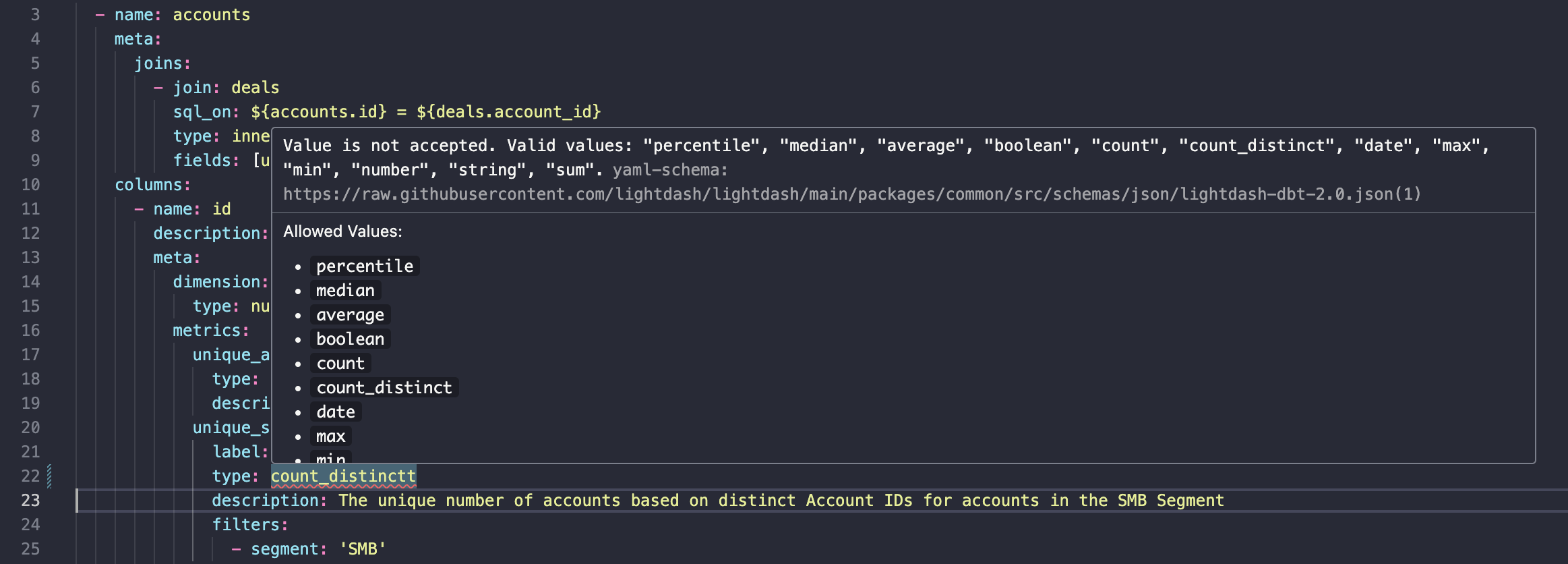
Once you have the extension installed and settings updated, you'll see warnings like this when working on your `schema.yml` files.